
How to Speed Up Your Website: A Complete Guide
Instant access to information is more important than ever. With just a smartphone and a quick search, you can become knowledgeable in a new field, make informed purchases, or solve everyday problems. Users have grown accustomed to high speeds and have lost patience for delays — even when it comes down to milliseconds.
This impatience impacts tangible behavioral factors visible in page analytics, such as depth of visit, bounce rate, and conversion rates. Slow loading speeds negatively affect the user experience and diminish interest in a brand. This can lead to potential customers leaving the site without engaging with it.
The relationship between delays in content display and bounce rates has been thoroughly studied in numerous research over the past few years. Case studies show that even a small delay (100 milliseconds) is perceived negatively by users and can lead to a 7-8% drop in conversions.
More noticeable delays significantly increase the likelihood that a user will leave the page immediately:
- A 3-second load time increases the bounce rate by 32%;
- After 5 seconds, the bounce rate rises by 90%;
- A 10-second load time boosts the bounce rate by 123%.
A slow website also affects everything related to site indexing. Prolonged load times and uneven content rendering prevent search engine bots from fully scanning the site, causing them to process far fewer pages. As a result, important information may not get indexed, remaining unseen by users, and ultimately, you lose both visitors and customers.
Website Performance Metrics
For users, page load speed is a subjective measure that depends not only on the pages themselves but also on the quality of the connection and the performance of the device. Nonetheless, site owners and developers should ensure that their website loads as quickly as possible and offers an ideal user experience, regardless of external conditions.
To achieve the best results, it's essential to understand where issues arise — this can be helped by commonly accepted metrics.
Core Web Vitals
In 2021, Google introduced the Core Web Vitals standards — key metrics for page performance that determine the degree of optimization and user-friendliness. These parameters directly affect your search ranking — they're the basic way Google measures a site's UX and information accessibility.
- Largest Contentful Paint (LCP). The rendering of the largest content on the screen. It determines how quickly the main content, important to users, loads. It should be less than 2.5 seconds.
- Cumulative Layout Shift (CLS). The overall shift of the layout during loading. It assesses the stability of the site's design during the initial content load. It should be less than 0.1 seconds.
- Interaction to Next Paint (INP). How quickly the screen updates during scrolling, data input, and other user interactions. It should be less than 200 milliseconds.
The INP metric replaced the outdated FID (First Input Delay), which measured the delay until the site became interactive. INP considers rendering speed across a broader spectrum of user actions, making the new parameter more accurate.
You can quickly check Core Web Vitals and compare metrics between different websites using this tool. You can specify a list of addresses and see the LCP, CLS, and INP metrics based on Google's data.
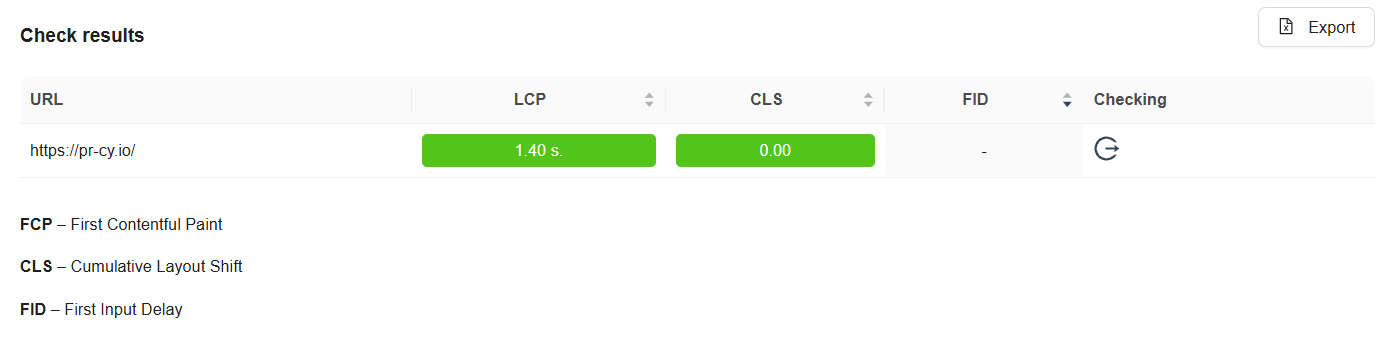 Core Web Vitals Bulk Check Interface
Other Metrics
Core Web Vitals are designed to reflect how a site behaves when used by a real person or search bot. There are other metrics that measure the overall speed and performance of the resource. They don't provide as complete a picture but will be useful for webmasters to understand the efficiency of current settings and potential for improvements.
Here are key metrics to pay attention to:
- Time To First Byte (TTFB) — time until the first byte loads. It measures server responsiveness and connection bandwidth.
- First Paint — time until the first render of the page by the browser.
- DOM Content Loaded — shows the time it takes to load the main HTML document of the page without processing styles, images, and other elements.
- Speed Index — the speed at which the content visible on the screen loads.
- Visually Complete — the state in which the page looks fully rendered, but some scripts and content might still be loading in the background, not affecting the visual perception.
- Total Blocking Time — the interval between the page's visual readiness and its transition to an interactive state.
- Load — signals that the loading of the page and its associated resources is complete.
Analyzing these metrics will help study the responsiveness of various page elements and identify weak points that slow down loading — whether it's server settings, HTML processing issues, too heavy scripts, or unoptimized media content.
How to Measure Your Website Speed
Many of the parameters discussed above can be studied if you have access to the server settings and individual pages. However, using tools that analyze key speed parameters and generate ratings for each is simpler and faster.
Website Speed Test
A Website Speed Test tool measures key metrics and provides detailed reports on errors and potential improvements. The service highlights critical areas, accompanied by descriptions, recommendations, and forecasts.
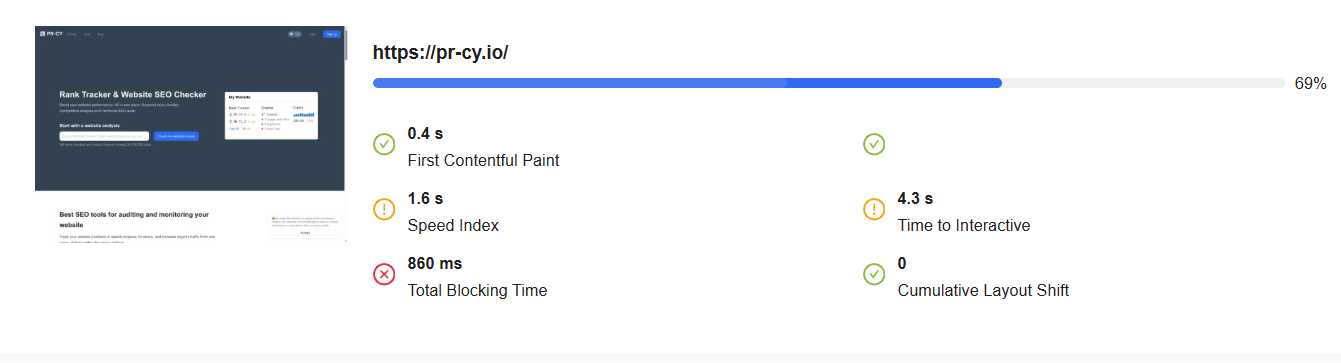 Website Speed Test Interface
HTML Load Checker
To find out how quickly HTML is processed on your site, you can use the Html Load Checker tool. This service measures the loading performance of the main page code, shows the result in seconds, and compares it with data from other tests.
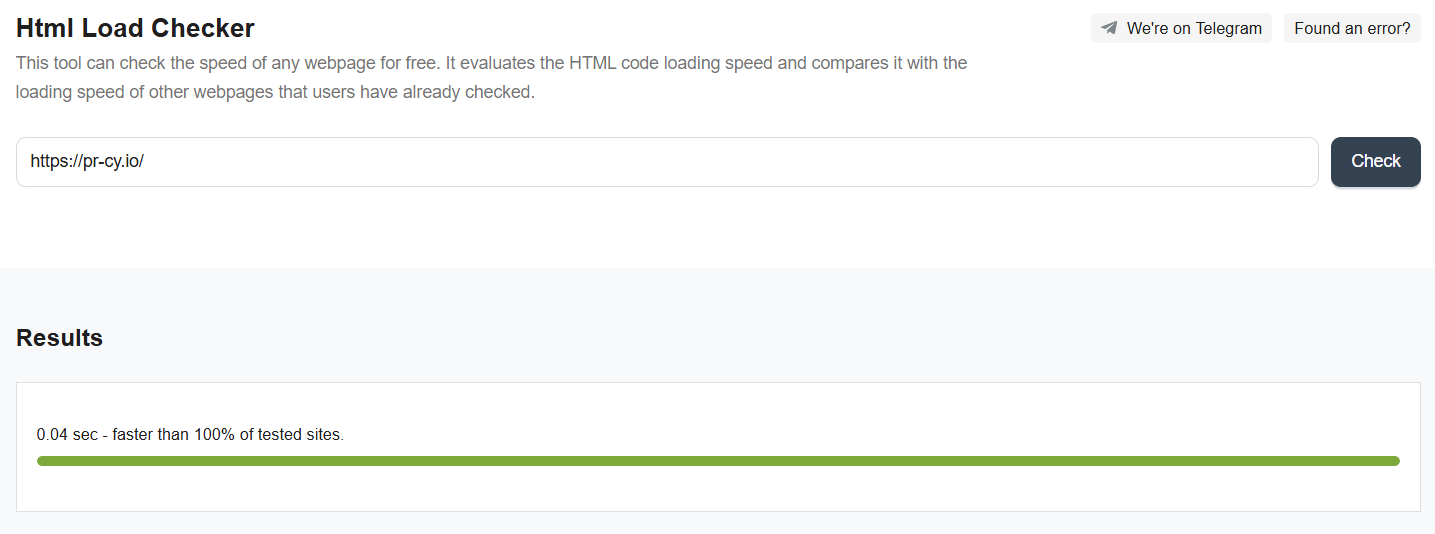 HTML Load Checker Interface
Google Lighthouse
A tool for generating website performance reports. With Lighthouse, you can measure Core Web Vitals and identify major issues and recommendations for fixing them.
Lighthouse can be installed from the GitHub repository, but the easiest way to use it is via the Chrome browser, where it is already integrated into the basic set of developer tools. To use it, press Ctrl+Shift+I and go to the Lighthouse tab.
You can analyze the metrics of any page you are currently on. The evaluation and reporting occur in real-time and take into account your network and browser settings — you see everything from the end user's perspective.
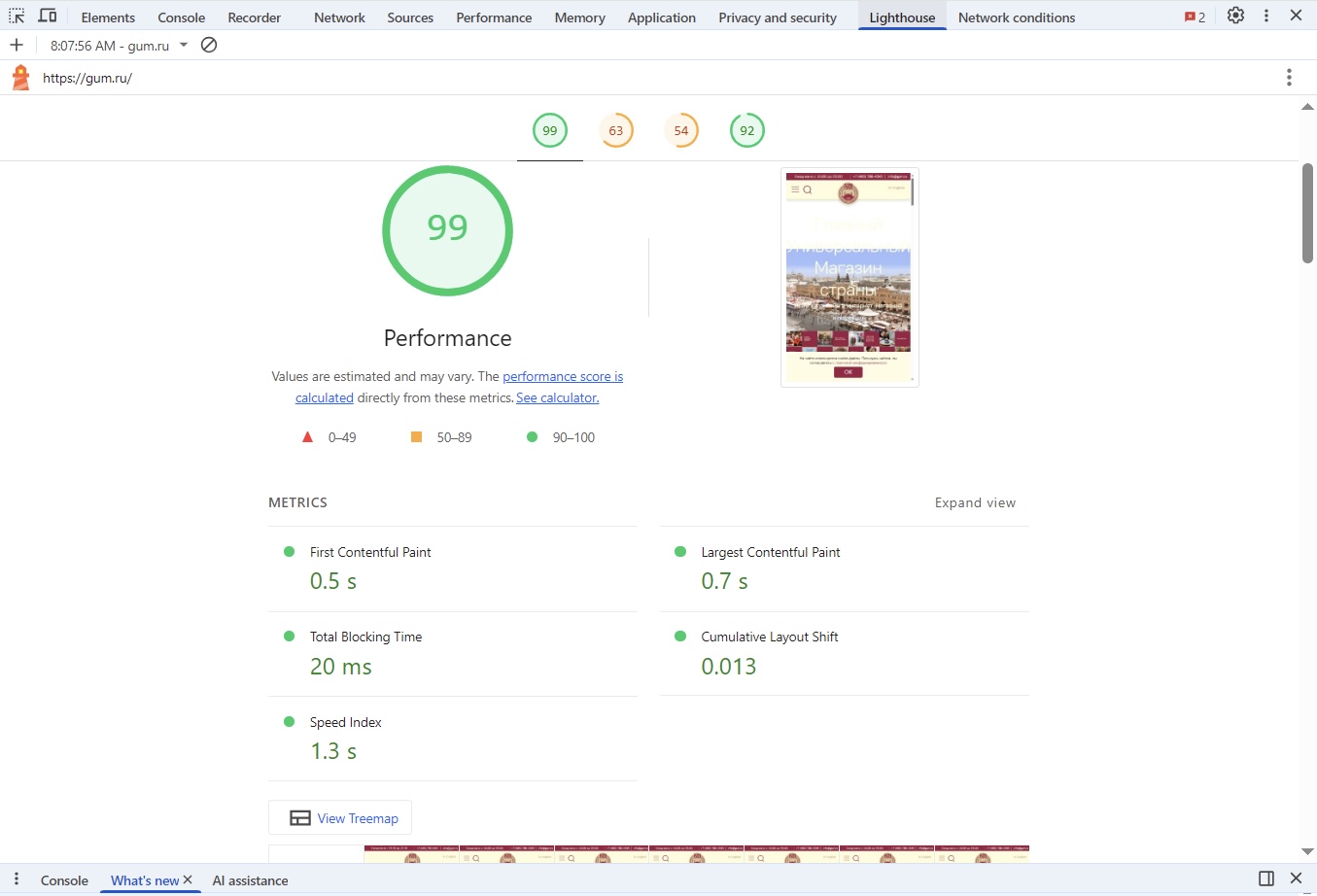 Google Lighthouse Interface
Google PageSpeed Insights
An alternative to Lighthouse is Google’s PageSpeed Insights. In fact, both services use the same engine, and PSI’s operation largely mirrors that of Lighthouse.
There is one significant difference: PageSpeed Insights collects archival data for the last 28 days. This allows you to see an averaged report from many users and conduct a deeper analysis of the real situation.
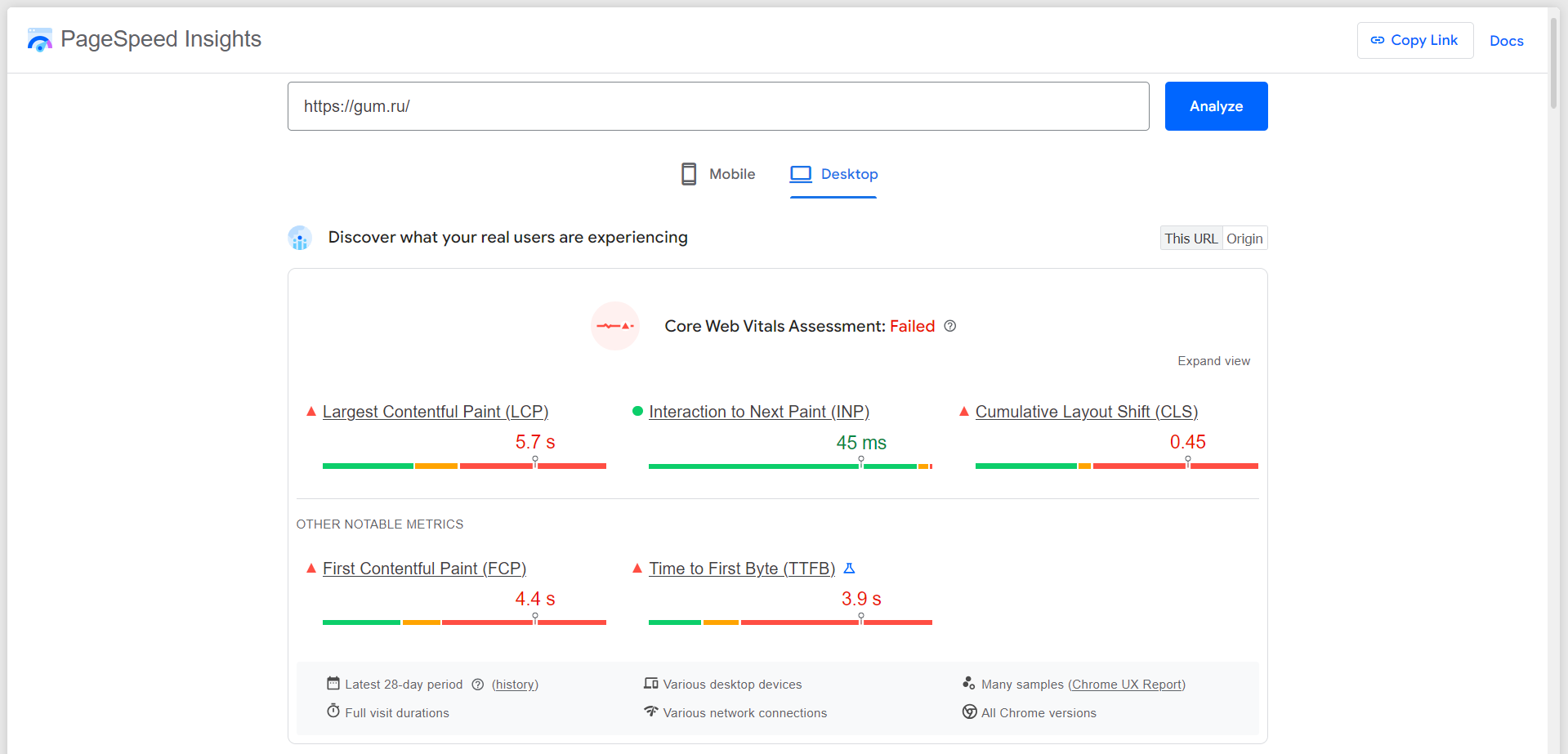 Google PageSpeed Insights Interface
Why Your Website Is Running Slowly
Some issues may stem from technical settings and improper code management. Poor optimization of content, styles, and scripts is also often to blame for slow loading times. External factors, which are not always within your control, play a role as well.
Unoptimized Media Files. It's important to find a balance between content quality and file size — oversized files can clog the server, create bandwidth strain, and impede quick loading.
Excess of Third-Party Scripts. Each additional widget, banner, and interactive element generates numerous HTTP requests to the server, which can burden both the server and the browser. The functionality of the website should not slow down its performance.
Inefficient Database Management. Many operations, especially in e-commerce sites, involve database queries. Poor structuring and an excessive number of records can make databases very slow.
Lack of Data Compression. For heavy HTML, CSS, and JavaScript files, using compression (such as GZIP) is essential — without it, these files can consume significant browser resources and throttle the connection.
High Load and Peak Traffic. The more visitors, the more strain on the server. If user traffic exceeds the server's capacity, the site's speed will drop, and in some cases, it may become unavailable.
Low Server Performance. A site is more likely to struggle with even modest visitor traffic if you're using outdated or underpowered servers. Issues typically arise with cheap plans or when using shared hosting, where server resources are divided among many sites simultaneously.
Remote Server Location. The physical distance between the server and the user also affects data transfer speeds. Even in the era of ultra-fast internet, data still needs time to "travel" between locations.
Excessive Ad Blocks. If your site includes third-party ad scripts, they can create additional requests and slow down the rendering of your main content.
How to Speed Up Your Website
Earlier, we discussed how to identify errors that slow down your website and what they might be related to. Now, let's explore how to optimize pages to achieve the fastest possible performance.
The key to accelerating your website is reducing the amount of information that needs to be processed during loading. The more data and content stored on a page, the more calculations the server and the user's device have to perform.
To ensure everything happens quickly and without unnecessary strain on computational resources, you need to make sure that every element on the page is as lightweight as possible while maintaining high quality and functionality. The following steps will help you achieve this.
Optimize Images
Images are one of the heaviest components of any page. They can take up significant space on the server and greatly slow down the website's loading time.
Fortunately, today there are many ways to compress images effectively without noticeable quality loss — photos and renders will remain sharp and detailed but will not weigh tens of megabytes.
Several formats are used for images on web pages:
- JPG: A traditional image format typically used for photographs. It's gradually becoming outdated, giving way to more modern formats that offer better weight-to-quality ratios.
- PNG: A more functional replacement for JPG, supporting transparent backgrounds and higher quality but with larger file sizes.
- SVG: A vector graphics format based on XML code that allows infinite scaling of images. Vector graphics are not suitable for photographs, so SVGs are usually used for logos and infographics.
- WebP: A format that uses Google's latest compression algorithm. It offers smaller file sizes than JPG and PNG without quality loss.
- AVIF: Based on the AV1 video codec, this format surpasses other algorithms in both compression efficiency and detail. It appeared recently but is already supported by most browsers.
Choosing the right format is just the beginning. Even the lightest images can affect website performance if there are too many of them or if they load at full size by default — this also impacts the user experience (UX) negatively.
Here's how to lighten the visual part of your site and ensure the best user experience:
Set the resolution. Define the required display parameters for images on the page using HTML or CSS — it's useful to use the srcset attribute to adapt the size to the device. If needed, you can add a feature to open the full-size image on click or embed a link to the full, uncompressed version.
Remove unnecessary images. Outdated, broken, or uncompressed images can slow down the site and create visual clutter. Get rid of anything unnecessary and keep only optimized images that match the page's theme.
Simplify the code. Some files may contain XML markup or EXIF data — remove them to avoid processing unnecessary information when the page loads.
Use text instead of images. If you want to add a caption to an image or create a stylish section header, it's better to do it with fonts and code — this helps reduce image sizes and improve SEO.
Compress SVG. Vector elements are stored in code, so you can use specific compression algorithms for them.
Minify Code
HTML, CSS, and JavaScript code can contain many unnecessary or repetitive elements that complicate file processing. Minifying code — removing spaces and other unnecessary characters, unused libraries, etc. — can help speed up loading. This reduces the file size and speeds up the processing of the page's foundation, styles, and scripts.
You can minify code using free online tools: HTML Compressor, CSS Compressor, JSCompress.
Optimize the Code for the Top Section of the Website
The first screen is the most crucial part of the page when a user first visits your website. It's essential for the top of the site to load almost instantly, and to achieve this, you need to work on the loading order and code weight.
Remove unnecessary code. If the source code includes links to JS and CSS, the browser sends requests for them and stops rendering the page until it receives a response. Move these elements down so they are processed after the first screen has loaded.
Place the most critical CSS in the head. To prevent the page from loading without any styles, key CSS code can be added to the very top of the page — this way, it can be processed immediately without requiring additional requests.
Separate styles and scripts into individual files. We recommend creating separate files for all CSS and JS to reference them in HTML — this reduces the number of HTTP requests that burden the server.
Set up asynchronous loading. By default, HTML loads line by line, and further processing of the file requires waiting for the complete loading of JavaScript and CSS. Asynchronous settings for styles and scripts bypass this limitation and allow the code to continue loading while additional files are processed in the background.
Use CSS to improve Core Web Vitals
Good Core Web Vitals are the foundation of a winning UX. For the site to be well-received by users and search engines, it must instantly display critical elements, quickly become interactive, and not shift already loaded content.
You can influence Core Web Vitals by working with certain aspects of CSS:
Remove unnecessary CSS. Generally, unused styles can be moved to a separate stylesheet and not referenced. The page should only contain critical CSS for the initial load, while secondary styles can be set up for asynchronous loading.
Create placeholders for large content. The loading speed of the largest content is one of the key metrics. You can optimize this by creating a CSS element in place of this key element. For example, a gradient can occupy the space of a heavy video while it loads.
Reserve spaces for visual content, ads, and banners. Create fixed-size containers for all content that might take a long time to load. This helps maintain the integrity of the layout and prevents it from shifting when a large banner finally appears on the page.
Specify fallback fonts for the text. Each font used on the page requires a separate request. While the desired font is loading, it can be replaced by a standard system font — you can specify this in the CSS as well.
Compress Data
Code, images, other media, or even fonts — all types of files that make up a website can be compressed. The principle is the same as archiving on a regular computer — first, a special algorithm reduces the overall file size, and then they are decompressed for use.
There are two main compression algorithms for websites — GZIP and Brotli. The first one appeared back in the '90s and remained the primary tool for this purpose for a long time. Brotli was created by Google in 2015 to replace GZIP.
Despite GZIP still being popular, Brotli offers much greater efficiency — at maximum compression, it works 21% better. GZIP, however, has broader support and slightly faster decompression speeds.
Choose a Suitable Server and CDN
A reliable server helps ensure speed and stability for a website of any size. Free hosting and shared servers are only suitable for test versions and very small websites with minimal visitor traffic. For more serious companies, we recommend using dedicated solutions or cloud solutions, which have sufficient resources for scaling and traffic growth.
A content delivery network (CDN) is an additional tool that takes on server load. Instead of exchanging data between the main server and the client, the CDN redirects the user to the nearest node, which mirrors the main storage. This is effective for businesses with a broad geographical reach and automatically enables additional features to speed up the site, including compression and caching.
Enable Data Caching
Cache is memory where already loaded data is stored. Instead of reaching out to the server every time, a website can display files stored in the browser or in a nearby CDN node's storage. This can significantly enhance the performance for regular visitors to your site. The key is to set up timely cache updates to ensure users don’t see outdated data.
Set Up Your Database
This advice is particularly relevant for online stores that deal with a large number of products and their categories. Data can accumulate on the server and overload its operation. Queries to an unstructured database will take a long time to process, and over time, they may stop working altogether.
To prevent this, we recommend periodically organizing your database. Indexes can help with this — sort the necessary data into categories and create separate files with a hierarchy. It also won't hurt to clean out outdated information and remove irrelevant items that you no longer need.
Additional Optimization Tips
- Enable Server-Side Rendering. With this algorithm, the rendering of HTML is handled on the server side, and the user receives an already prepared file, to which styles and scripts are then loaded.
- Use HTTP/3. This protocol allows for faster transmission of HTTP requests and responses, which increases the speed of information exchange with the server.
- Explore AMP. Accelerated Mobile Pages can create lightweight versions of pages, which is especially useful for mobile versions.
- Optimize Fonts. A limited number of fonts on the site will make it more cohesive and, most importantly, faster. Local storage can also speed up loading — fonts already loaded into memory won’t need to be fetched from external sources again.
Summary
The performance of your pages should not be underestimated, as it directly impacts the success of your site. Common mistakes are related to poor optimization of file sizes, content placement, and insufficient code refinement. To find and fix critical issues in time, use analysis tools and follow recommendations for improving your site's speed.
🍪 By using this website, you agree to the processing of cookies and collection of technical data to improve website performance in accordance with our privacy policy.