
12 Common Google Analytics Setup Mistakes: How to Fix Them and Avoid Losing Data
Brief Summary
This article will help you check your Google Analytics and GA4 setup if your reports show understated bounce rates, duplicated traffic sources, lost UTM tags, or internal and spam traffic getting into your statistics.
Who should read it: SEO specialists, marketers, website owners, performance teams, and analysts who make decisions based on Google Analytics or GA4 reports.
When working with a website, webmasters rely on statistical data about traffic, links, conversions, and other metrics. If you rely on incorrect data from Google Analytics, there’s a risk of making decisions that could harm the website.
However, it may also happen that the webmaster is doing everything right, the website is in good shape, but Google Analytics is making errors and distorting the picture. This article will help you understand how to minimize the factors that skew data and avoid setup mistakes. We won’t cover obvious mistakes here, such as incorrect time settings or a mismatch between the property ID in the code and the GA settings.
So, where can you go wrong when setting up Google Analytics?
1. Incorrect Interaction Event Setup
Bounces on a website are normal. Users leave a site for different reasons, and it’s not always the site’s fault. If Google Analytics shows an unnaturally low bounce rate, the bounces are most likely happening, but due to the setup, they are being counted incorrectly.
Purchases and form submissions are examples of user actions on a website, and they are marked as interaction events. They are conversion-related and important for the business. Usually, if a user completes some target action on a page and then leaves it, analytics systems do not count this as a bounce.
But if all events are configured as interaction events and are not counted as bounces, the bounce rate will be unnaturally low. For example, video autoplay or a click on a pop-up should not be treated as interaction events.
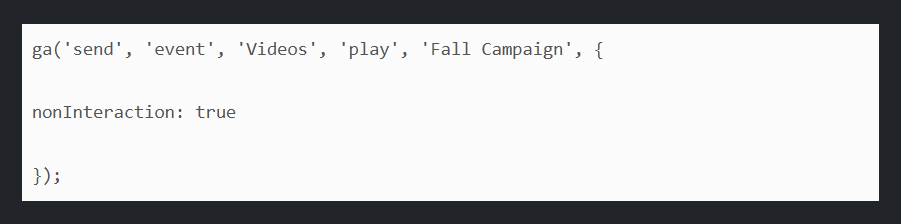
If the bounce rate looks suspiciously low, add one more line of code to the GA event snippet. To do this, in the fieldsObject of the send command, set the nonInteraction field to true. Example for a video:
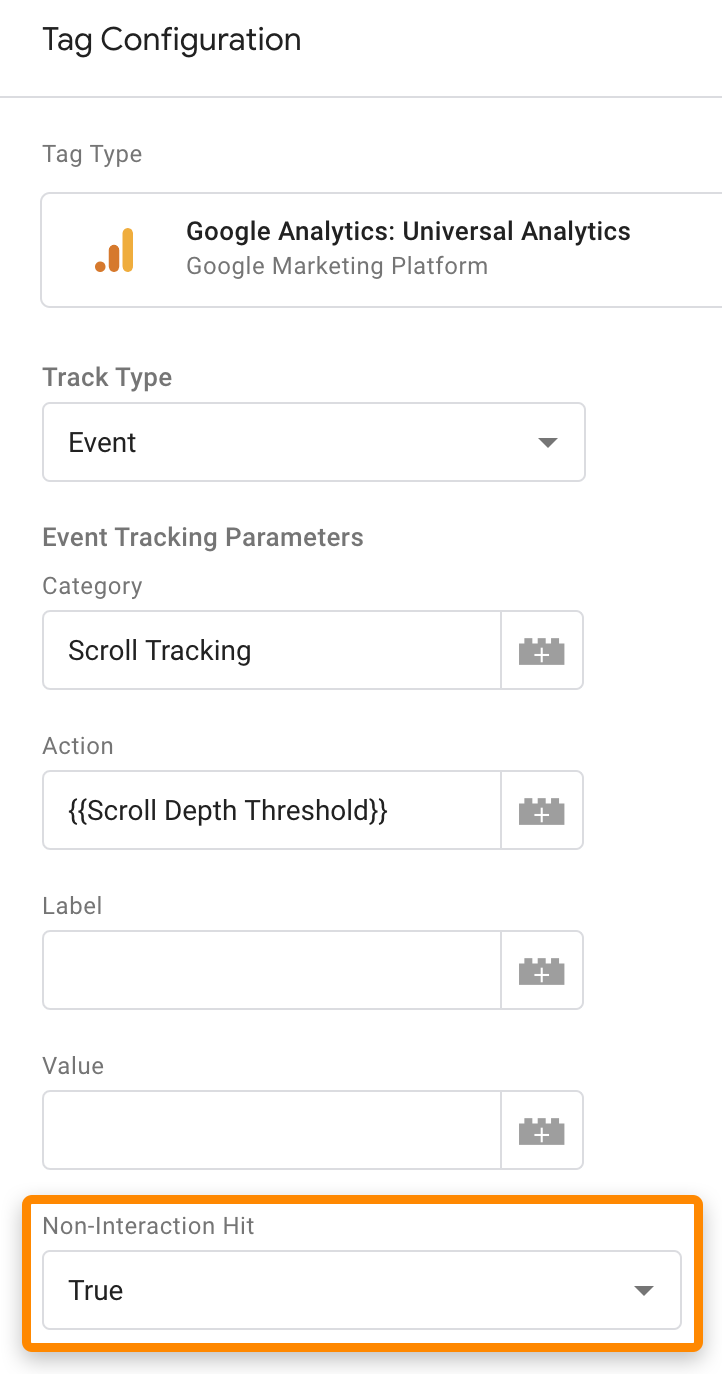
If you use Google Tag Manager, change the “Non-interaction event” setting from false to true:
In GA4, the old bounce-rate logic has been replaced by the engaged sessions model. That’s why it’s especially important not to send unnecessary events such as scroll, session_start, or automatic events as markers of a high-quality visit. Otherwise, reports on engagement, conversions, and landing page performance will look better than they actually are.
2. Tracking Statistics from Other Domains
The Google Analytics and Google Tag Manager tracking code is visible to anyone who opens your source code. If you don’t set up a view filter, someone could use your tracking code and compromise your data collection.
You can set up a view filter in Custom Filters. Hits that don’t match the configuration will be ignored by the system, and their data won’t appear in reports.
Hostname regular expression filter template: (^|.)example.com.
In GA4, the familiar views and many of the filters from Universal Analytics are no longer available. Therefore, protection against unwanted hosts and mixed-in traffic is built through proper tag installation, domain verification in the data stream, and checking the hostname in reports or BigQuery.
3. Tracking Your Own Sessions
A large team of specialists — company employees — may work with the company website. They are not part of the buyer audience, so there is no need to track them, otherwise the statistics may become distorted. To avoid this, you need to set up an IP filter that excludes internal traffic.
Today, filtering only by the office IP is no longer enough. Teams work remotely, and employees access the site via mobile networks and home internet. In GA4, it is better to use the traffic_type parameter and the internal traffic rule for this, and then check the data in both the test and live data streams.
4. No Bot Filtering
A significant share of traffic may come from bots, which also do not need to be tracked. All you need to do is enable one checkbox in the view settings.
Sometimes the built-in filtering of known bots is not enough. Some bots imitate regular users, open pages through a browser, and trigger events. So additionally check for anomalies by country, language, screen resolution, hostname, and spikes in direct traffic.
5. Tracking Spammers
Popular websites attract spam links. Look at your traffic: if you see a sharp spike with no clear reason, it is most likely an influx of bots from spam sites.
You need to exclude bots from your statistics so you can analyze real performance. Bots usually have zero time on page, so set up traffic exclusion based on time on page and a 100% bounce rate.
Shadow domains with a large number of referrals can be found in the referral traffic section:
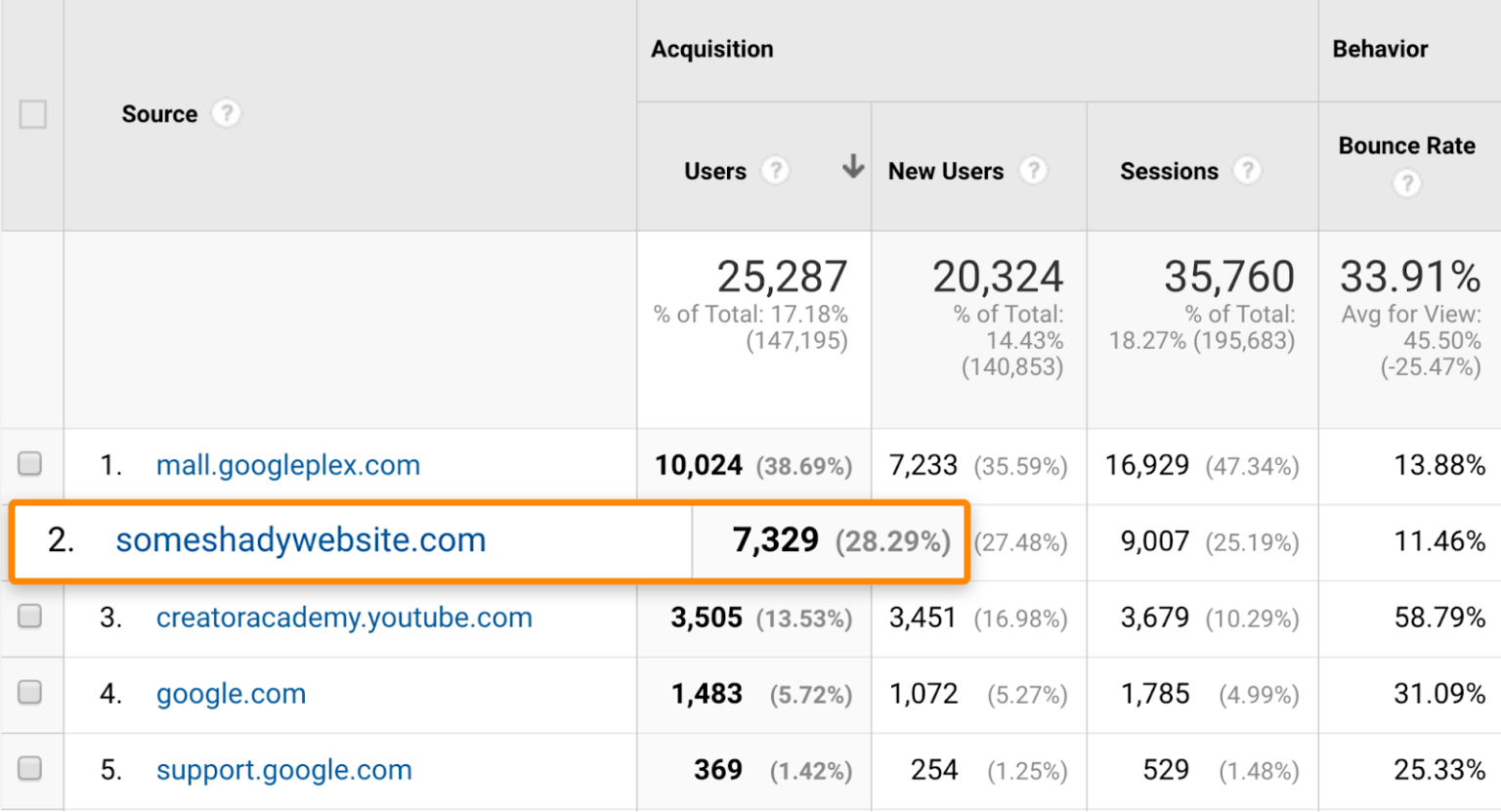
It is better not to click these links — they may contain viruses. Create a list of such domains and exclude them using filtering: set the filter field to “Campaign Source”, then list the domains in the “Filter Pattern” field, separating them with the “|” symbol.
Under the filters, there is a button that lets you see how the filters affect your data.
Spam in analytics can also appear as junk events, fake direct visits, and a stream of anomalous sessions with zero value.
6. Goal Match Type Configured Incorrectly
When setting up goals, you choose a match type. There are three of them: “Equals,” “Begins with,” and “Regular expression.” If you make a mistake and choose the wrong type, the data will be collected incorrectly.
- Equals — the goal matches a specific link URL.
- Begins with — when the action is completed, a parameter, session ID, or transaction is added to the URL.
- Regular expression — specific conditions need to be accounted for.
When migrating to GA4, many people transfer goal logic mechanically and end up with incorrect conversions. In GA4, key events are used instead of goals, so you need to check the triggering conditions and event parameters.
7. Conversions Are Recorded on the Wrong Pages
Conversions should be recorded on thank-you pages: thank you for your order, form submission, newsletter subscription, or another conversion action.
Check whether visits to other pages are being recorded as conversions. There have been cases where a conversion was mistakenly registered on every page of a website.
Look at the “Reverse Goal Path” report in Google Analytics: Conversions > Goals > Reverse Goal Path.
The first column on the left will show the pages where goal conversions occur. If you see unrelated pages in this list, it’s a sign that you need to change the conversion tracking criteria.
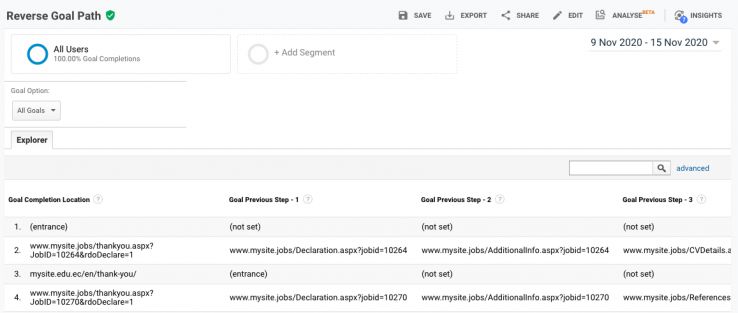
Important point: a conversion can be recorded based on a pageview, or it can be recorded based on an event. If your conversion tracking is set up based on an event, and you see extra URLs in the list of pages, make sure the conversion event fires only after the page has been viewed.
For GA4, there is one more important thing here: the event should not be sent again when the page is refreshed, when the user goes back, when the thank-you URL is opened again, or when the tag auto-fires after an SPA render. Otherwise, conversions will be inflated.
8. Random Links to Pages Where Conversions Are Recorded
If you use the loading of a specific page as a goal — for example, an order thank-you page — then a conversion will be recorded every time that page is visited.
A problem may occur if a user can get to this page without placing an order or completing another conversion action. This can happen if there are other links leading to the thank-you page — such links should be removed.
Scan the website with any crawler that is convenient for you and check whether pages where conversions are recorded appear in the results. They should not appear in the list at all. If such pages are there, check the incoming links to them. This way, you’ll find out which link a user may accidentally follow to reach the conversion page. Partners may accidentally or intentionally share a link to it to provide you with a good report, or it may end up in ads — check all sources.
This issue is often caused not only by random links, but also by the indexing of technical pages, messenger previews, test runs, and thank-you URLs saved by users. To protect against this, close such pages from indexing, remove internal links, and, where possible, switch conversion tracking from a URL-based setup to a confirmed event.
9. UTM Parameters Are Set Up Carelessly
UTM parameters are tags added to URLs to identify specific traffic sources and conveniently track visits in Analytics. These tags are mainly used with paid advertising, purchased links, and affiliate links.
When creating a tagged link, you must specify the following fields:
- utm_source — the traffic source, advertising platform (advertiser, website, social network);
- utm_medium — the type of traffic (social media, banner advertising, or another type);
- utm_campaign — the name of the advertising campaign, product, or offer.
Let’s say we’re launching an ad campaign. Without UTM tags, traffic may get merged with referral, direct, or other channels. That’s why it’s better to add tags to advertising URLs right away using a single consistent template.
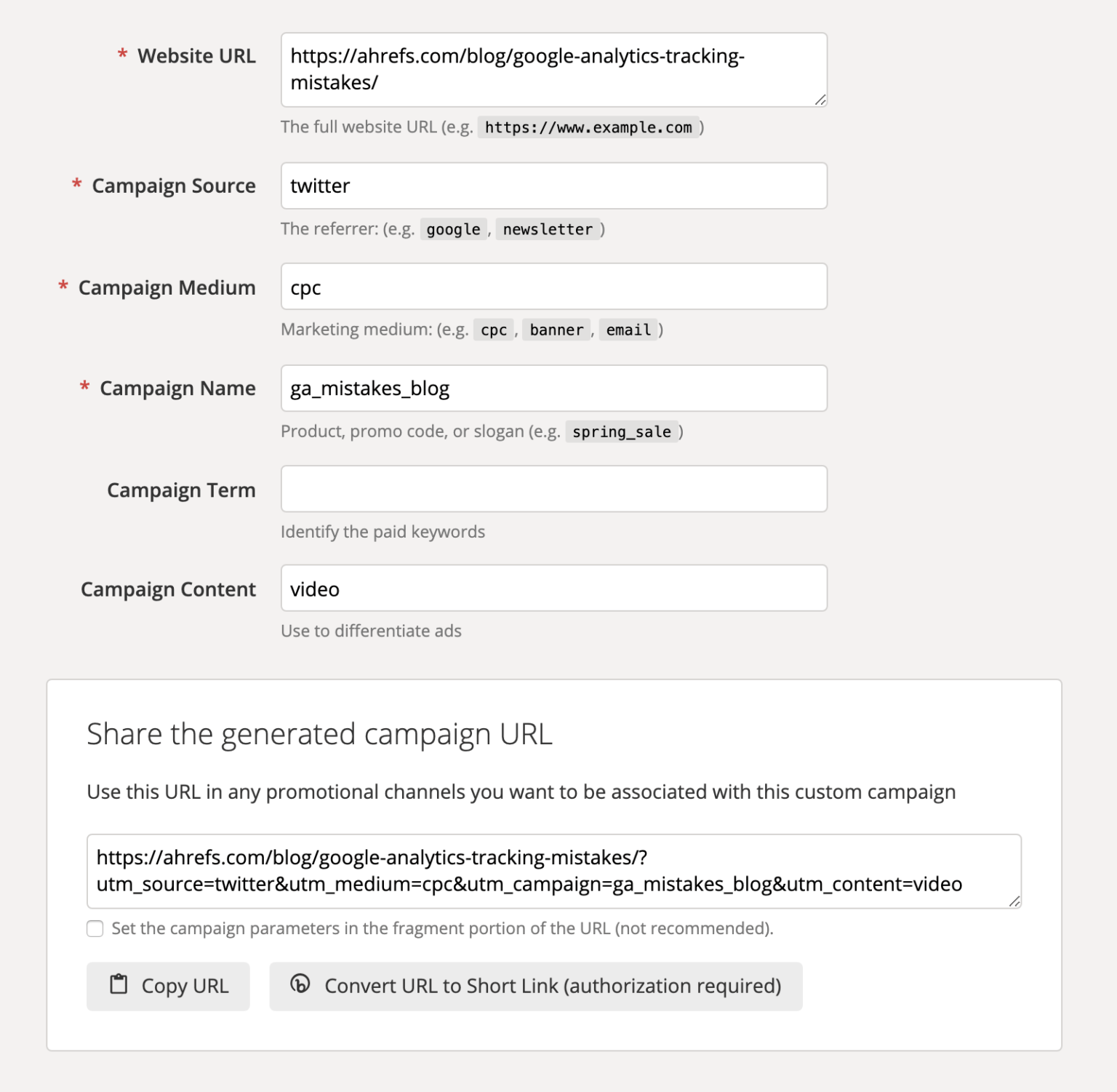
These UTM parameters are then sent to GA servers and used in the corresponding dimensions.
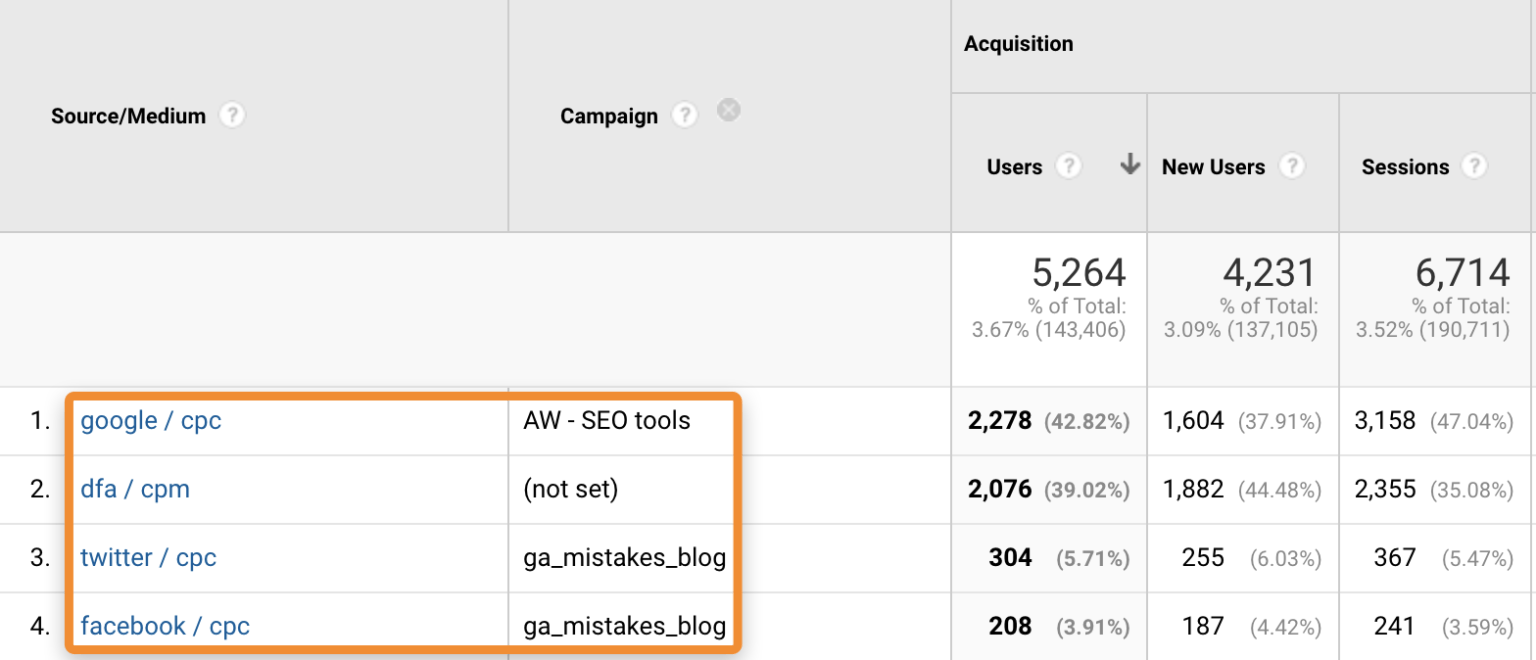
If the analytics account is linked to an advertising system and auto-tagging is enabled, there’s no need to duplicate it with manual UTMs. But it’s important to check whether manual tags, auto-tagging, and redirect parameters conflict with each other. Sometimes these conflicts break channel attribution.
There may also be issues with tracking tagged links that are difficult to influence. For example, if a user saves a link with UTMs and opens it from bookmarks, the visit will be attributed to the advertising source, even though it is actually a direct visit.
10. Page Parameters Are not Excluded
A page URL may contain parameters and unique session identifiers such as sessionid, yclid, openstat, and others. Because Google Analytics treats links with parameters as different URLs, one page may appear across several rows in a report:
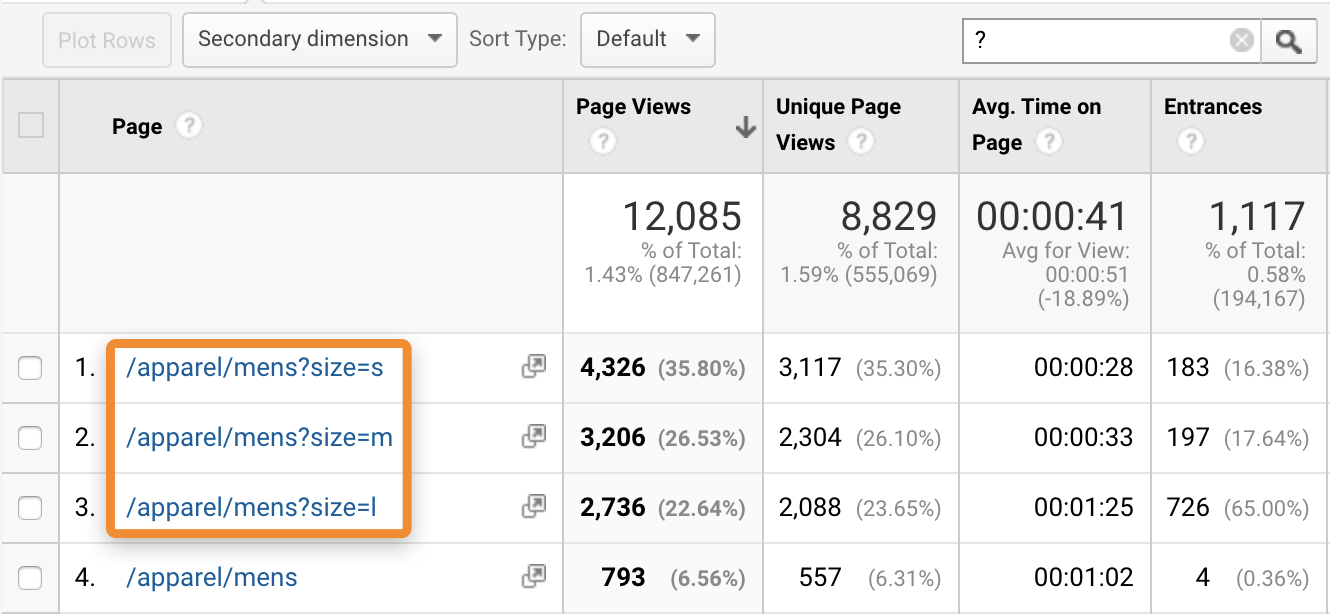
Exclude technical parameters and identifiers from reports so that the same page is not split into dozens of URLs. But do this carefully: a mistake here can easily break website analytics, internal search, and advertising campaign attribution.
In Google Analytics, display all URLs with parameters and, in the view settings, exclude the parameters you don’t want to see in your reports.
Make sure you do not exclude:
- search query parameters, otherwise the system will block internal search data;
- UTM parameters;
- specific parameters you want to track, for example, for different products in an online store.
For GA4, this task is handled through URL normalization in reports, events, BigQuery, or Looker Studio, as well as through proper parameter processing on the website side. If you have an SPA, parameters can multiply even faster.
11. The Same Traffic Sources Are not Merged
Some traffic channels are duplicated because the system recognizes them as different sources. A common example is referral traffic from Facebook:
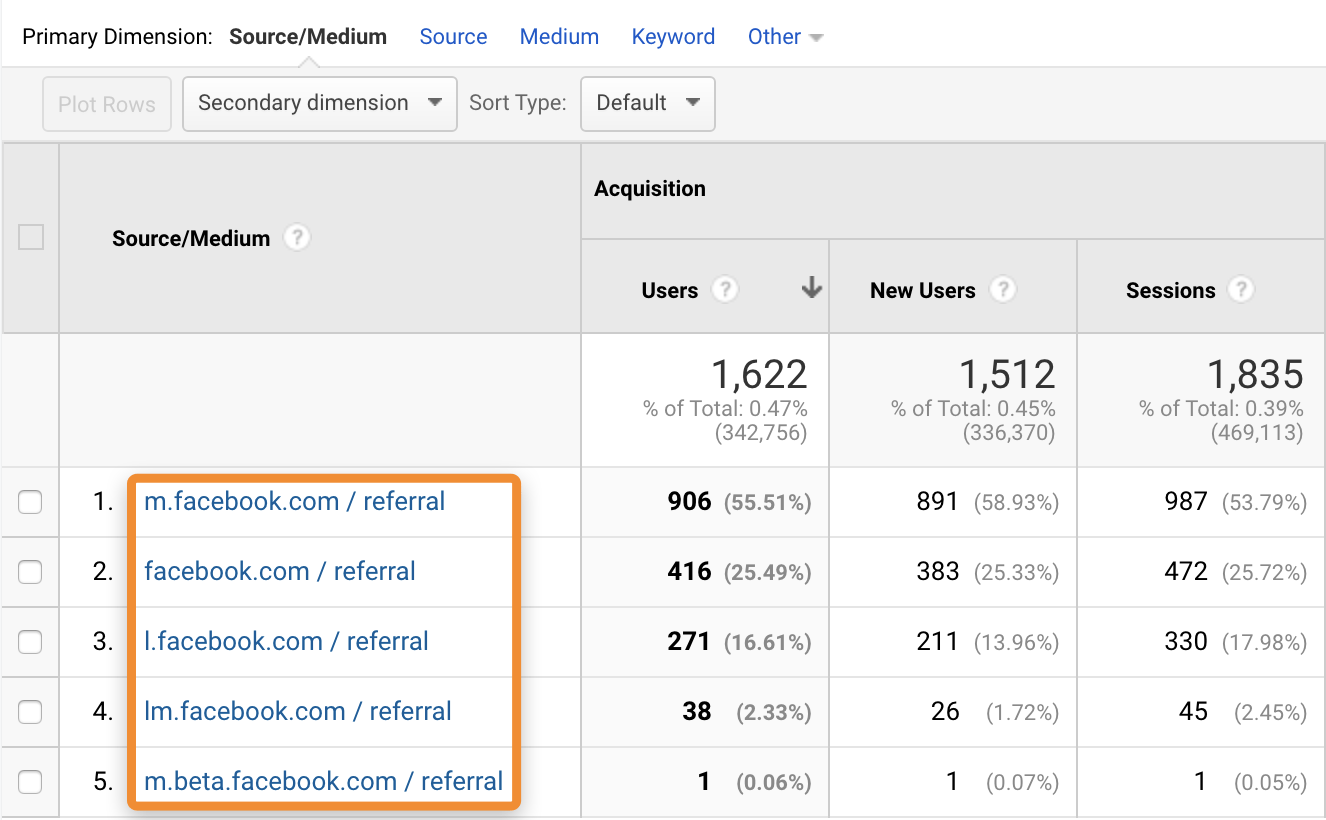
Facebook uses these referral links for security and privacy purposes, but they make traffic source analytics more complicated.
This can be fixed with filters, which will merge referral traffic from different channels related to Facebook.
Google Analytics does not apply filters retroactively, so you will still have to deal with old data where the sources were not merged.
In GA4 and in the updated Google Analytics setup, this issue can be solved not only with filters. A unified source directory, proper UTM tagging, a list of unwanted referrals, and a separate check of visits from messengers, payment systems, and mobile apps can also help.
12. The Exclusion List Is not Being Used
Some domains should be added to the referral exclusion list so that traffic from them is not tracked separately as new user sessions.
This is especially useful in three cases:
- Third-party payment systems. If you use third-party payment systems, customers are redirected from your website to the payment system and then back to your website after the payment is completed. If you do not exclude the payment system from your traffic sources, the system will count the customer’s return to the website as a new session.
- Subdomain tracking. With the referral exclusion list, you can exclude traffic from domains and their subdomains. The list uses a “contains” match type: if you add example.com, traffic from the subdomain sales.example.com will also be excluded because the domain name contains example.com.
- Cross-domain tracking. Google Analytics cross-domain tracking allows you to combine data from multiple domains. This may be needed if a webmaster wants to bring several websites within one business together.
The referral exclusion list is located in the Tracking section. Specify the domains that you do not want to see as referral sources in your report. Enter domains in the format example.com to include all subdomains.
Google Analytics setup depends on how complex your reporting requirements are. If you notice that something is wrong in your statistics, the issue may not be with the website itself but with data collection. So we recommend checking how your analytics service is configured.