
Error 401 Unauthorized: What It Means, Why It Appears, and How to Fix It
Brief summary
In this article, you’ll find a detailed breakdown of the causes of the 401 Unauthorized error, how it compares to 403 Forbidden, and tips for fixing it. We’ll look at why you can’t access a page, how to resolve account-related issues, and what to do if the source of the problem is on the server side.
A 401 error prevents a user from logging into a website — you either see a screen with the error code, or the interface asks you to enter your username and password again. Often, the cause is incorrect login credentials and other user-side issues — problems with cache and cookies, an expired session, or an incorrect URL.
In some cases, a 401 error appears because of incorrect settings on the server side. In that case, the site administrator or developer needs to check that the server has access to all the necessary files containing account information and passwords, that the correct headers are being sent when communicating with the client, that the API is configured properly, and that the time is synchronized.
Who will find this useful:
- regular users;
- website developers and administrators;
- SEO specialists.
What Is a 401 Error
A 401 Unauthorized error is a standard HTTP response status code that means an attempt was made to access a resource without authentication. It occurs when you do not have the data required to log in to a website, or you submitted incorrect information. The server cannot verify your identity and, because of that, usually will not let you proceed past the login screen.

Despite the name “Unauthorized,” the 401 status code is specifically related to authentication, not access rights. According to the HTTP specification (RFC 7235), this status means that authentication is required but was either not provided or failed.
A 401 error may appear for the following reasons:
- You entered the wrong username or password when logging in to the website.
- You are trying to access a section that requires authorization—such as a personal account area — without logging in.
- You were inactive for too long, and your session or authorization token expired.
- A request to the server was sent without the required API key or with an expired access token.
- Outdated session information was stored in the browser.
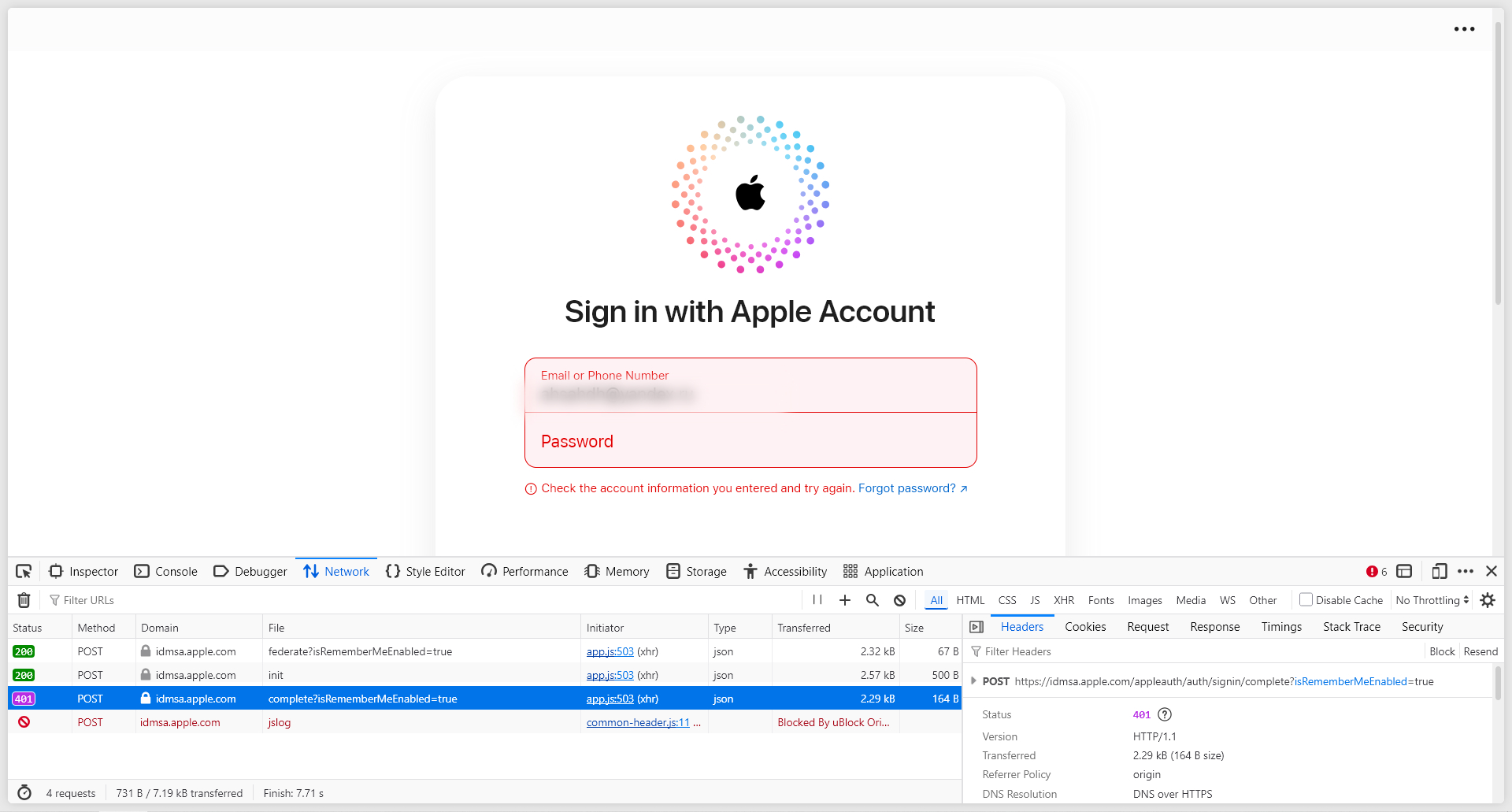
Along with the 401 error, the server sends the WWW-Authenticate header, which contains information about which authentication method should be used—for example, Basic (username and password), Bearer (token-based authentication), Digest (hashed data), and so on. It may also specify the access scope (Realm) and additional details about the reason for the denial.
If the server response contains inaccuracies or the WWW-Authenticate header is missing entirely, this can break the correct access logic of the website. In that case, a 401 error may occur where it should not. If that happens, the responsibility lies with the site developer, and the issue needs to be resolved at the server level.
FAQ for This Section
Can a 401 error be related to an expired session?
Yes. If the user has been inactive for too long, the session or authorization token may expire. In this case, the server requires the user to log in again and returns a 401 status code.
Why does a 401 error occur when working with an API?
The reason is usually a missing API key, or the use of an invalid or expired access token. The server does not receive valid authentication data and rejects the request.
I don’t have an account, but I don’t see an error when trying to sign in. Why?
Nowadays, almost no one uses the standard 401 error screen in this scenario. Most websites will instead ask you to enter your username and password in a dedicated interface, and if you do not have an account, they will offer registration or suggest contacting the site team. You can still see the actual access error using developer tools — press F12 or Ctrl+Shift+I, go to the Network tab, and look for the relevant response codes.
401 and 403: How Authentication Differs from Authorization
Recognizing a user consists of three stages:
- Identification. The user tells the system who they are — for example, by entering a username or providing a unique device identifier.
- Authentication. The server checks whether this really is that user — for this, they may need to enter a password, confirm the sign-in via a push notification, or use a token.
- Authorization. The server identifies the user and determines their level of access — which sections of the site they can view and which actions they can perform.
At different stages of this process, errors may occur related to data validity and resource access settings — 401 Unauthorized and 403 Forbidden. These are often confused because the numbers are close and the functions seem similar, but they communicate completely different things.
401 Unauthorized is related to authentication. The server does not know who is trying to gain access and asks the user to sign in. To continue, you need to log in using one of the available methods.
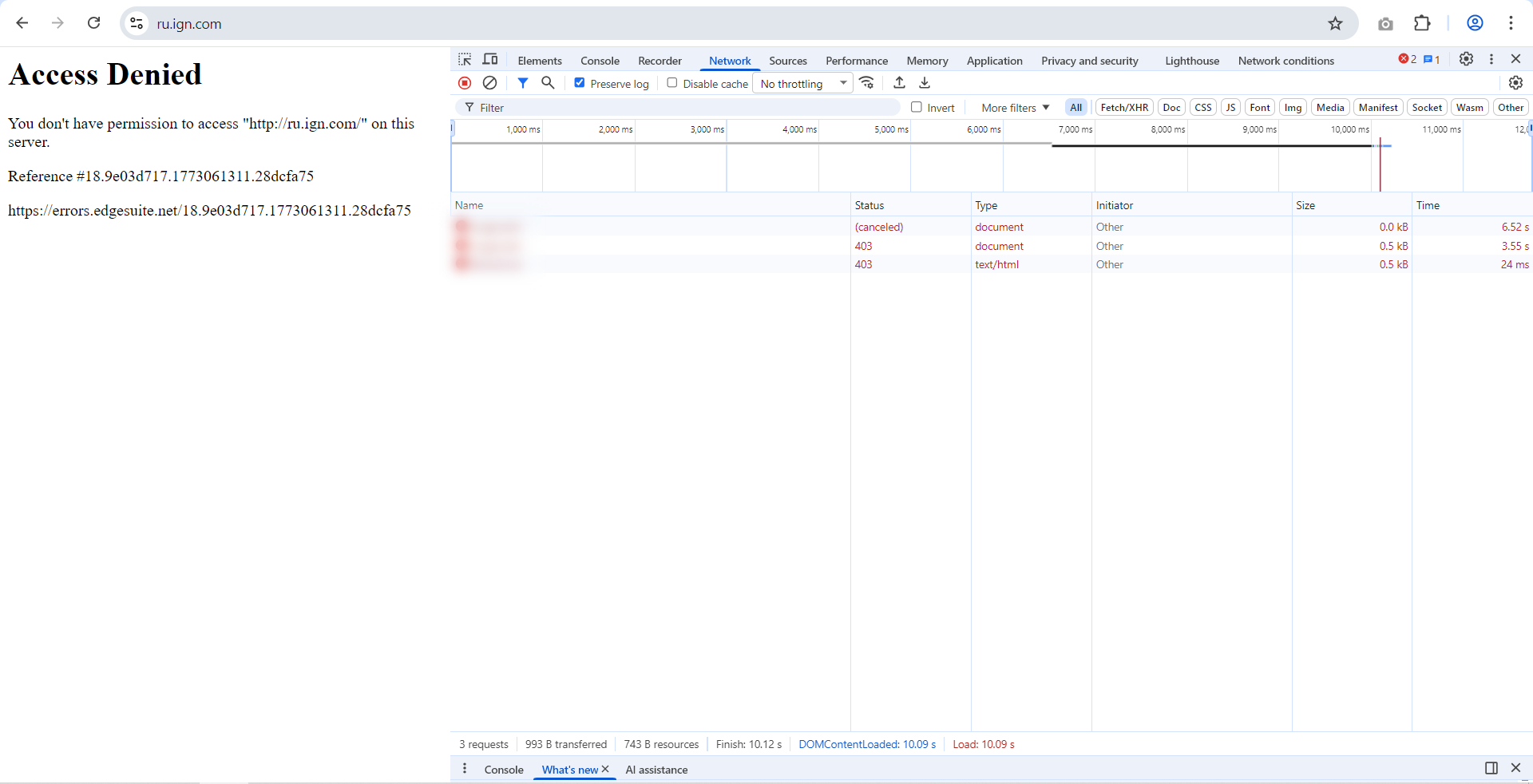
403 Forbidden appears at the authorization stage. The server has enough information about the user, but it denies access to specific sections or even to the entire site. This means you do not have permission to view this address, even if you have a verified account.
A 403 error may occur if a regular user tries to go somewhere they should not — such as the admin panel or a section for VIP clients. It can also happen that the access rights do exist, but they simply have not been updated yet — for example, a new employee may need to wait until they are granted access to the company’s closed ecosystem.
Sometimes 403 Forbidden is configured for all users who match a certain criterion — for example, by location. In this case, neither full authorization nor even authentication is needed — the server simply checks the IP address and blocks access for a specific region.
FAQ for This Section
What is authentication and how is it related to 401?
Authentication is the process of verifying a user’s identity. After entering a username, password, token, or confirming through a push notification, the server can see that it is indeed this specific user. If the check fails or the data is missing, the server returns 401 Unauthorized.
What is authorization and when does 403 occur?
Authorization is the process of determining the access level after successful authentication. The server decides which sections and actions are available to the user. If the permissions are insufficient, it returns 403 Forbidden, even if the account itself is valid.
What should you do when you get 401 and 403 errors?
With 401, you need to complete authentication: sign in to your account or refresh your access token. With 403, repeating the login is pointless — you need to check your access rights, contact the administrator, or make sure the resource is available for your role or region.
Why a 401 Error Occurs
Unlike 403 Forbidden, a 401 error does not block access completely — you simply need valid login credentials. Identity verification starts the authorization process and allows you to access your profile, open your personal account area, or start using a service. If that does not happen, the issue may lie either on the user’s side or on the server itself.
No Authorization Data
The most common cause of a 401 error is trying to access a website without user credentials. You usually do not need authorization to read news sites, but when it comes to social networks, marketplaces, and online services, a personal profile is essential. In this situation, your first step should be to register an account and sign in.
Incorrect Login or Password
If you cannot access an existing account, the problem is most likely related to an error in your login or password. These elements are required to pass authentication, and without them, the server will not allow you to use your profile.
Expired Session
Sessions on many resources are often time-limited — after that, you need to confirm your identity again. Authorization tokens on websites and web applications may also have a short lifespan, and after a period of inactivity, you will need to obtain a new one. You may also be logged out of your profile if you signed in from another device or changed your password in a parallel session.
Outdated Cache and Cookies
The cache may store an outdated version of a page that was available to you after your last authorization. If you try to perform an action (follow a link, send a message, place an order), it will fail — the server has already “forgotten” you, and you will need to authenticate again.
Cookies can cause a similar issue if they still contain information from an old login session that is no longer valid for the server.
Errors in the Address or Request Parameters
Mistakes in the URL may prevent proper authentication — for example, you may accidentally enter the address of a restricted section of the site or use a bookmark that leads to an outdated page. Most likely, different login rules apply in such cases, and only site administrators can access those areas.
A 401 error may also be caused by missing API parameters that should be included in the URL, incorrect encoding of special characters, or simple typos.
Access Restrictions
A 403 status usually indicates that access is denied due to insufficient permissions, but a 401 error can sometimes play this role as well. A Forbidden response blocks actions without any alternatives, but the process can also be configured differently.
If a user does not have permission for certain actions, the server may ask them to provide different credentials — sign in with another account or supply a new key that grants broader permissions. The role of a 401 response is to restart the authentication process and give the user a chance to enter the necessary information.
Server Configuration Errors
Authentication issues can also arise on the server side. Most often, these problems are caused by errors in configuration files and other settings:
- .htaccess or web.config may contain incorrect paths to password files.
- The proxy server may fail to pass the authorization header to the backend, so the system cannot read the authorization token.
- The WWW-Authenticate header may not include information about the required authentication type, or it may not be sent at all along with the 401 error.
- Security settings may prohibit the transfer of credentials, so the server cannot receive the required data.
- The server may not have permission to read configuration files or connect to the database, causing authentication to fail.
FAQ for This Section
How do cache and cookies affect the appearance of a 401 error?
The cache may store an outdated version of a page that was available at the time of a previous authorization. Cookies may contain old login data that the server no longer accepts. As a result, the server does not confirm the current request and requires you to sign in again.
Can a 401 error be related to an incorrect login or password?
Yes, in this case, an incorrect login or password fails authentication, and the server returns a 401 code. Check your keyboard layout, character case, and restore your password if necessary.
What is an expired session, and how does it affect the appearance of a 401 error?
A session has a limited lifetime. After it expires, re-authorization is required. A 401 error may also occur if the user signed in from another device or changed their password — in that case, the previous session becomes invalid.
How to Fix a 401 Error: A Guide for Users
If you run into a 401 error while visiting a website, the first thing to do is check your login details. If that doesn’t help, make sure the issue isn’t related to your browser or internet connection. If you’ve already tried everything else, it makes sense to contact the site’s administrators — the problem may be on the server side, and in that case only the site owners will be able to resolve it.
1. Check Your Credentials
The most common reason for login problems is entering the wrong username or password. Make sure there are no mistakes and that you’re using the correct information:
- The email address you use to sign in must match the one you entered when creating the account or later set in your profile settings.
- If you sign in with a phone number, make sure it’s linked to your account and entered in the correct format. If there’s a country list, choose your operator’s location — otherwise the first digits may not match.
- Passwords are case-sensitive, so check that Caps Lock is off and that all uppercase and lowercase letters are entered correctly.
- Make sure you’re not accidentally entering alternative key values — for example, by using the Shift key on desktop or long-pressing keys on a smartphone.
2. Reset Your Password
If your login attempts aren’t working, try resetting your password. This clears the old password and lets you create a new one after a simple identity check.
Password reset usually works like this:
- On the login page, find the appropriate option — it may be called “Forgot password,” “Don’t remember your password?” or “Reset password” and is often shown as a regular link below the password field.
- Click the link and enter the email address connected to your account — you’ll receive a message with further instructions.
- Wait for the email and follow the steps described in it — websites usually send either a reset link or a code.
- Create a new password and use it to log in to your account.
3. Sign in Again
A 401 error can also appear when you entered everything correctly and successfully logged in, but after some time the server stops recognizing you. It’s simple — your session has expired, and now you need to sign in again.
To avoid doing this every time, check the “Remember me” or “Keep me signed in” option when entering your login details — this creates a cookie file with your login data. That way you can stay signed in until you log out manually or clear your browser data.
4. Clear Cookies and Cache
Sometimes information stored in the browser becomes outdated — for example, you may have logged in from another device and set a new password, or something may have changed on the website itself. Cookies can become outdated over time, and the server may no longer be able to use them to grant you access.
Something similar can happen with cache — it may contain old versions of pages and authorization headers that the server no longer accepts. A quick way to check and fix cache-related issues is to press Ctrl + F5 — this forces a full page reload with fresh content. You can also try using incognito mode.
To fix errors related to browser files, try clearing cookies and cache:
- Open your browser history.
- Click “Clear browsing data,” “Clear recent history,” or a similarly named button. Tip: Ctrl + Shift + Delete usually opens the right window immediately.
- Choose what you want to erase and for what time period, then click “Delete.”
After removing old cache and cookies, you’ll need to sign back in to the accounts on the websites whose data you cleared.
5. Check the URL and Query Parameters
Some websites use special link parameters to identify users and protect data. These parameters may contain required access tokens. Without them, identification won’t work — the server won’t recognize you.
Typos in the page address can also take you to the wrong section of the site, where different access rules apply and you may need to log into another account. The exact form of the link can matter too — if you signed in on https://www.site.com, the version at http://m.site.com may not recognize you.
To avoid a 401 error, make sure that you:
- Haven’t changed the link — the address may contain parameters like ?auth_key=123 that are required for user authentication.
- Are using an up-to-date version of the link — saved bookmarks may lead to a page that is no longer supported, and their addresses may contain outdated parameters.
- Are using the same version of the site you used to log in — mobile subdomains and http:// versions may require a separate sign-in.
- Aren’t trying to access restricted sections of the site — if you’re not supposed to be there, you may get a 403 error or a 401 response asking you to sign in with an account that has broader permissions.
6. Check Your Account Status
If all the previous steps look fine but you still can’t access the site, the problem may be with your account. The two most common reasons are that your account was never confirmed or that it has been blocked.
When you create an account, you should receive an email asking you to confirm that it’s really you who wants to register. Inside, there’s usually a link you need to click to start using your profile. Unconfirmed accounts are often deleted after some time, so it’s best to complete this step as early as possible to avoid losing access.
You may also lose access if your account has been blocked. Services can ban users for violating the rules, publishing prohibited content, or due to suspected fraud. As a rule, information about the block and whether it can be lifted is also sent by email.
7. Use a Browser or Device Already Known to the Server
If you sign in from a device or browser the server doesn’t recognize, you may be asked to go through additional identity verification steps. Usually this means two-factor authentication with a verification code that proves you have access to the contact methods linked to the account.
Another common issue affects users of streaming services and paid digital products — they may limit the number of simultaneous sessions or even prohibit account use on an external device altogether. If you need to move to a new device, log out from the old one first. In the case of paid software, you may need to purchase a new license key or expand the old one.
Browser-side issues can also be caused by plugins. Extensions may affect how pages load and block the exchange of certain data between the server and the client. Check whether your ad blocker is interfering with sending or receiving response headers — this too can cause a 401 error.
8. Check Security Settings
System security settings may restrict connections to the nodes through which response headers and identity-related information are exchanged.
Check whether the addresses required for authorization are blocked in your firewall or antivirus settings. Review their blacklists and whitelists, and if necessary temporarily disable protection. If access is restored afterward, add the required resources to the exceptions list.
9. Check Network Connections
Programs that affect network connection logic can also interfere with communication with the server. Unlike built-in system security utilities, these settings are most often changed by the user.
To make sure you have access to the required data exchange channels with the servers, check your proxy server settings and the hosts file.
Remove or add to exceptions the addresses related to the services you need. Authentication and authorization do not always happen through the website’s main address — if the required nodes are blocked in your connection settings, you won’t be able to connect to the part of the server responsible for signing you in.
It’s also worth checking the internet connection itself — if the connection has dropped, you won’t be able to use the site at all. The login page may report that sign-in is impossible or has failed, but the real cause is simply that no data exchange is taking place. Reconnect and try signing in again.
10. Contact Support
None of the methods above worked? Get in touch with the website’s support team. The service specialists will most likely help you understand the problem and find its source.
If the lack of access is caused by a blocked or lost account, they’ll explain the reasons and the recovery options. If the issue is technical, support will share the latest instructions, and if the problem is on the server side, they’ll log your request and pass it on to the developers.
FAQ for This Section
Which network settings most often interfere with connecting to the server?
The most common causes are incorrect proxy server settings and changes made to the hosts file. These tools can redirect or block requests to specific nodes. Check whether access is restricted to the addresses related to the service’s authorization process.
How can I check whether the 401 error is related to cache?
Press Ctrl + F5 — this forces the page to reload fully and fetch the latest data from the server. You can also open the page in incognito mode. If the website works correctly there, the cause is usually the browser’s saved data.
Can a 401 error be related to the page URL?
Yes, many websites use special link parameters (for example, ?auth_key=123) to pass access tokens. If such parameters are removed or changed, the server won’t be able to identify the user and will return a 401 error. Typos in the address can also lead you to a part of the site with different access rules.
Why might authorization fail even if the main website opens normally?
The authentication process often goes through separate servers or subdomains. If even one of these nodes is blocked, the login page may still load, but transferring account verification data will be impossible. Check access to all related addresses, not just the main domain.
How to Fix a 401 Error: A Guide for Developers and Administrators
Above, we covered the reasons why a client may encounter a 401 error. But there are also situations where the server sends this response because of incorrect settings on the website itself. Below are the most common issues and ways to fix them.
1. Study the Server Logs
The logs contain the main clues about what is happening while the server is running and whether all processes are working properly. There are two types of logs: access.log, which contains records of access to the site, and error.log, which records errors.
Analyze the entries and check whether the server is passing the required headers and information about authentication types. The logs can also show whether there have recently been connection issues or false positives from security systems.
Log locations in Nginx: /var/log/nginx/access.log and /var/log/nginx/error.log
Log locations in Apache: /var/log/apache2/access.log and /var/log/apache2/error.log
2. Check the Server Configuration
A 401 error may indicate that the syntax or structure of the main server settings has been broken.
Apache
Check the .htaccess settings. The use of this file must be allowed in the server configuration, and the file itself must correctly specify the authentication type and user requirements.
Make sure that:
- the path to the .htpasswd file is specified correctly;
- the server has permission to read it;
- the mod_auth_basic module is enabled.
Nginx
Check that authentication settings are present and that subrequest logic is correct if you use proxy servers and APIs.
3. Check File Permissions
The server may correctly read authorization rules and accept authentication data, but it will not be able to match them against the requirements if it does not have access to the password and settings files.
Give the server access to the parent directories where the .htpasswd and .htaccess files are stored.
Grant the server access to the password file by setting its permission to 644.
4. Check Authentication Methods
For successful user authentication, the server must send the WWW-Authenticate header requesting the required data, and in response receive the Authorization header with the client’s data.
Check that WWW-Authenticate requests a supported authentication method. For Basic, access to the password file will be required; for other methods, token lists and other verification elements are needed.
Make sure the Authorization header sends the user data required for authentication, and that the client side supports entering and sending this data.
Avoid conflicts between authentication methods. If multiple sign-in methods are supported, configure the system so that only one of them is used at a time, not all of them at once.
5. Check the Integrity of User and Role Data
A 401 error may occur because of a mismatch between the user data on the server and what the client sends. Most often, the user makes the mistake, but it can also happen because of edits to the relevant files.
Check the record format. In .htpasswd, valid usernames and their corresponding passwords must be stored in the form user:encrypted_password. Do not change this format or allow typos if you edit the file manually.
Make sure users are assigned the correct roles, especially if these roles are taken into account when exchanging data with third-party services. An API or proxy may block a user if it does not recognize them as having a known role.
Synchronize databases so that information about new users and roles reaches the system in time.
6. Check Token Validity
If you use token-based access, it is important to monitor their integrity and the server’s ability to validate them.
Make sure that:
- the Bearer authentication method is specified correctly and passed to the client;
- the issued tokens contain valid signatures;
- the tokens are already active but not yet expired;
- the correct timestamps are used and the server clocks are properly synchronized;
- the tokens being used have not been revoked or blacklisted.
If even one of these points contains an error, the user will not be able to use the token issued to them and will face a 401 error, even though they did everything correctly.
Also check the structure of the JWT token. It must consist of three parts separated by dots: header.payload.signature
Typical causes of 401 when using JWT:
- the expiration time has passed (exp);
- the server uses a different secret key to verify the signature;
- the algorithm is specified incorrectly (for example, HS256 instead of RS256);
- the server time differs from the token generation time.
7. Use Testing and Debugging Tools
Different tools and services can help identify problems at various stages, track errors in request formation, and reveal other unexpected causes of authentication errors.
The curl command lets you see the headers the server sends in response to a request and quickly check whether the data exchange is correct.
To check the server response code and track 401 errors, you can use an online Website Down Checker service. Just enter your site’s URL, and the tool will show the server response and its explanation.
You can connect your site to our service to track rankings and detect errors as comfortably as possible. Then you will receive notifications about all changes on your site within 24 hours — even before the problem becomes serious.
8. Check API Settings
A 401 error may be caused by incorrect configuration of API tools or by broken logic in the server’s interaction with them.
Make sure that OPTIONS preflight requests do not require authentication. The browser first sends a preliminary CORS request without a token to check allowed methods and headers. If the server responds with 401 Unauthorized, the main request will not be sent at all. As a result, the user will see an authorization error or a CORS error in the developer console.
Check that headers are passed correctly — handlers must not alter the case, and the token must be sent with the same prefix the server expects.
The secret files on the server must contain the same parameters that were used to generate the tokens themselves.
When validating users against a database, the API must have access to the corresponding database.
9. Update the System
To avoid breaking access rights and blocking users from using the site, it is important to apply patches and update the system in time.
Track errors when applying new patches — they may roll back the server configuration and cut off its access to password files and other data.
Install new versions of OpenSSL and synchronize server time — this is critically important for the correct exchange of headers and authentication data.
Regularly update libraries and modules to protect them from vulnerabilities and data loss.
When making major changes, create backups of key server configuration files.
10. Perform Testing
Testing is an important stage for detecting server-side errors and preventing unexpected problems in the future.
Here are several important checks worth performing before launching a site or after updating it:
- Test a clean request from the server using the curl command — it will show the headers and help identify at which stage they are being lost.
- Test the server’s response to user interactions using one of the automation tools (Postman, Insomnia). This helps you see real responses and check different behavior scenarios.
- Check that tokens work properly. Set different expiration times and test token generation to identify possible causes of issues when working with the API.
- Test the server under load. Simulating a scenario with a massive influx of visitors will show how the configuration handles authentication for different users.
- Keep and read logs — they contain records of all the errors the server encounters during operation.
FAQ for This Section
What should you check first when you get a 401 error?
Start by analyzing the server logs — access.log and error.log. In access.log, you can see which requests were received and what response code was returned. In error.log, authentication errors and access issues are recorded. Check whether the WWW-Authenticate and Authorization headers are being passed, and whether there are connection drops or triggered security mechanisms (WAF, security modules).
What token errors most often lead to a 401?
The main reasons are:
- the Bearer method is specified incorrectly in the Authorization header;
- the token’s digital signature is invalid;
- the token has expired;
- time is out of sync between servers;
- the token has been revoked or is on a blacklist.
In what order should API requests be processed to avoid a 401 error?
First, the server should handle CORS, and only then API authorization. If this order is broken, the server may reject the request before checking the token.
How to Avoid Running Into a 401 Error Again
For users, a 401 error means there’s a problem with login credentials — and even if you sort everything out now, there’s no guarantee that next time you’ll remember the right password or be able to recover a lost account.
To avoid that, it’s worth following a few rules.
Set Up a Password Management System
Get a password manager that can help you generate strong combinations, store them securely, and automatically fill in the required details when you log in.
Regularly Clear Your Browser Data
Cache and cookies make life easier, but errors in these files can cause problems accessing your account. On top of that, they take up storage space and put extra load on your device’s memory.
Keep Your Credentials Up to Date
Changing your password from time to time will help you avoid forgetting it, and it also reduces the chances of being hacked if your old credentials were ever leaked somewhere. If you’re using a new email address, link it to your active accounts so you can receive notifications in time and recover access through a password reset if needed.
Use Up-to-Date Devices and Apps
Websites implement security systems that require users to have current browsers and operating systems. And those, in turn, heavily depend on the hardware. You may be blocked by a security check — or even by something as simple as a time sync issue, which can prevent your API token from working.
🍪 By using this website, you agree to the processing of cookies and collection of technical data to improve website performance in accordance with our privacy policy.